


AI Brand Image Generator
Create and edit on-brand product, campaign, and social images from text or reference images. Compare AI image models in one workspace.
Create and Edit On-Brand Images in One Workspace
Create product, campaign, and social images with text prompts or reference images, then compare AI results in one workspace.
Create Images That Feel Like Your Brand.
Upload a product or brand asset, describe the image you need, and create new visual directions from one prompt. Use reference images to preserve the details that make each result feel on-brand.
Create brand images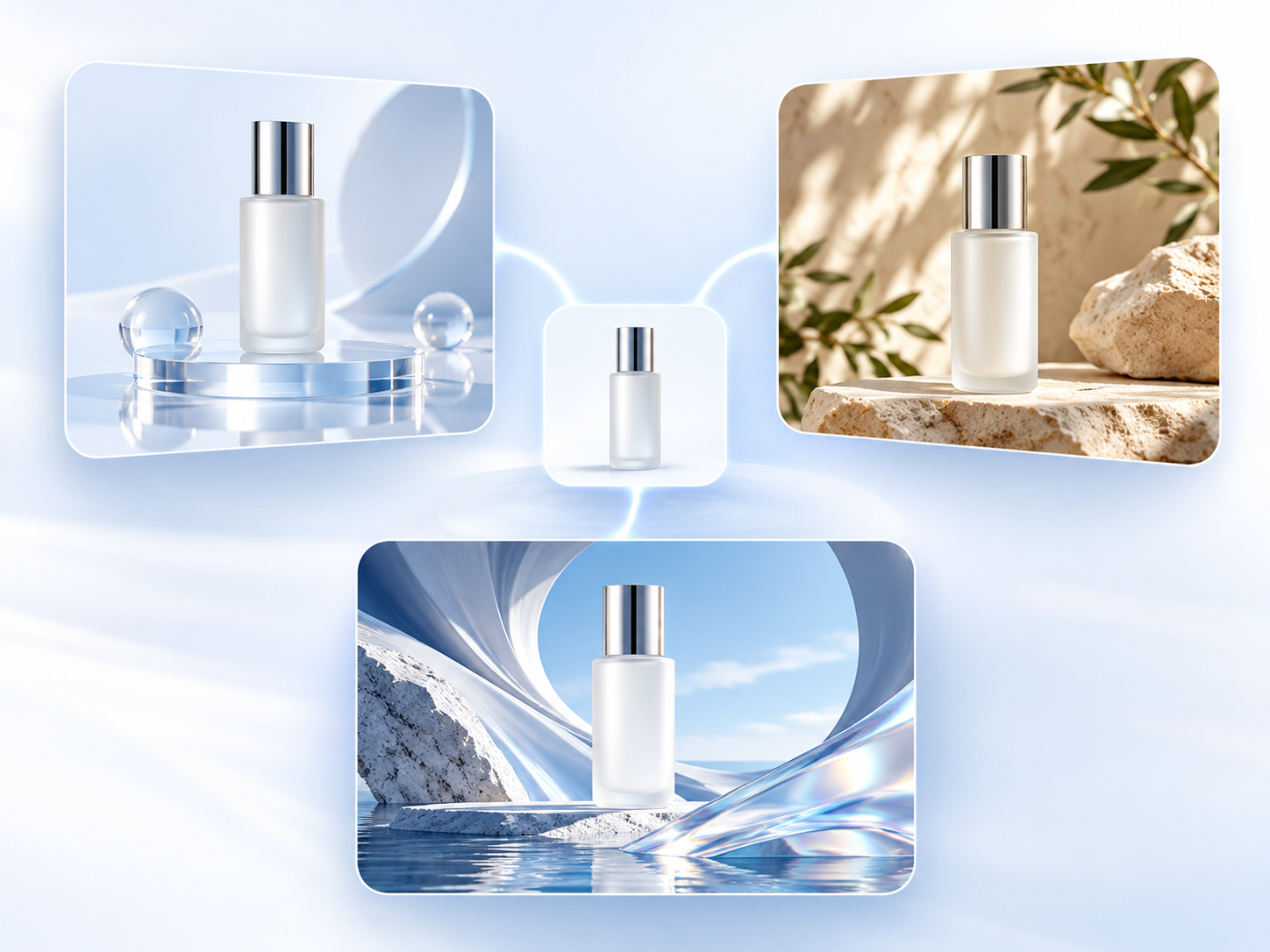
One Brief. Different Visual Directions.
Send one brief to several AI image models and review their visual approaches side by side. Keep the version that best captures your idea, then refine it with another prompt or reference image.
Compare model results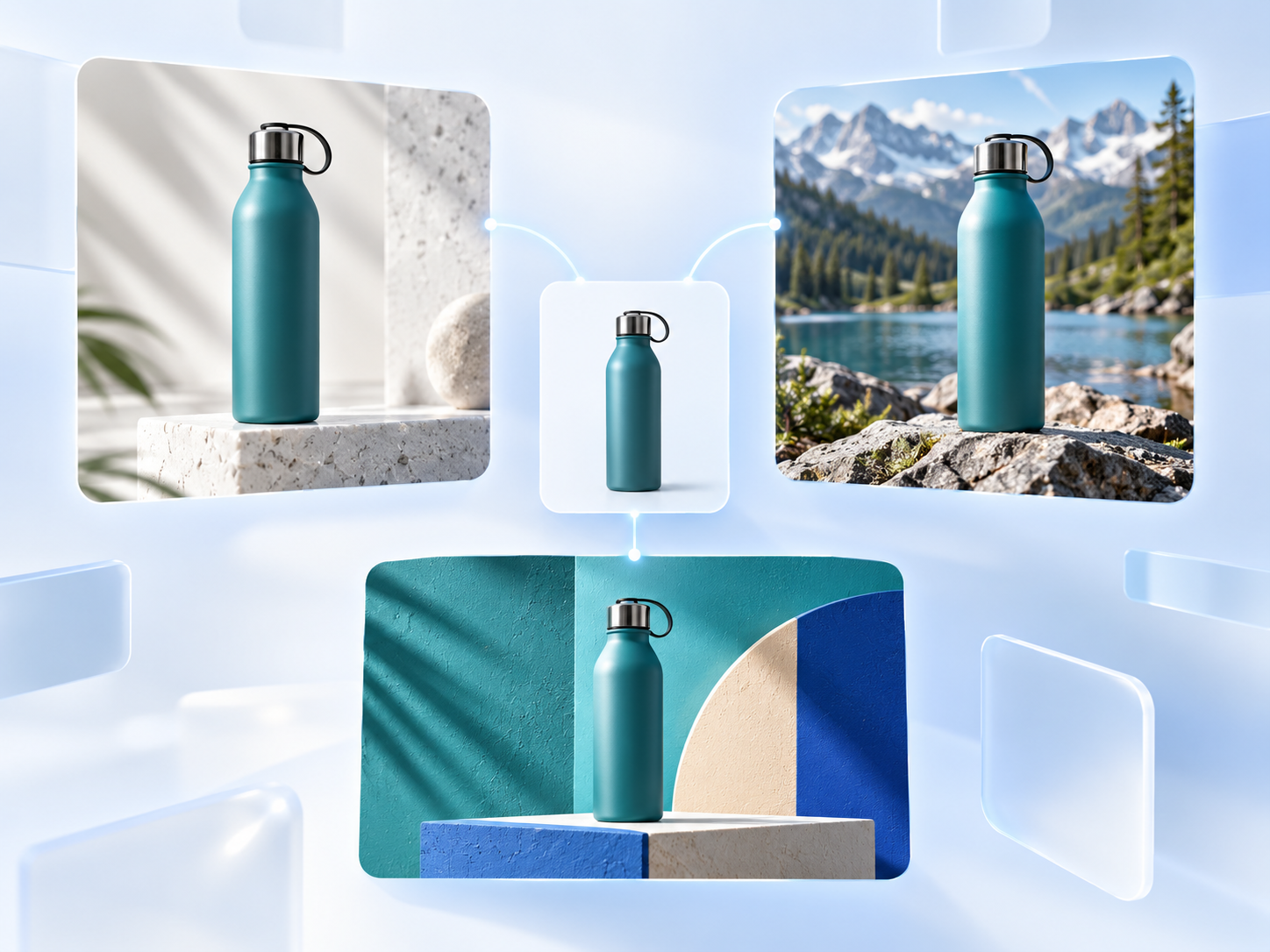


Turn Brand Images Into AI Videos.
Use a finished image as the starting frame for an AI-generated video. Add a motion prompt to introduce movement, atmosphere, and camera flow without rebuilding the visual from scratch.
Make a video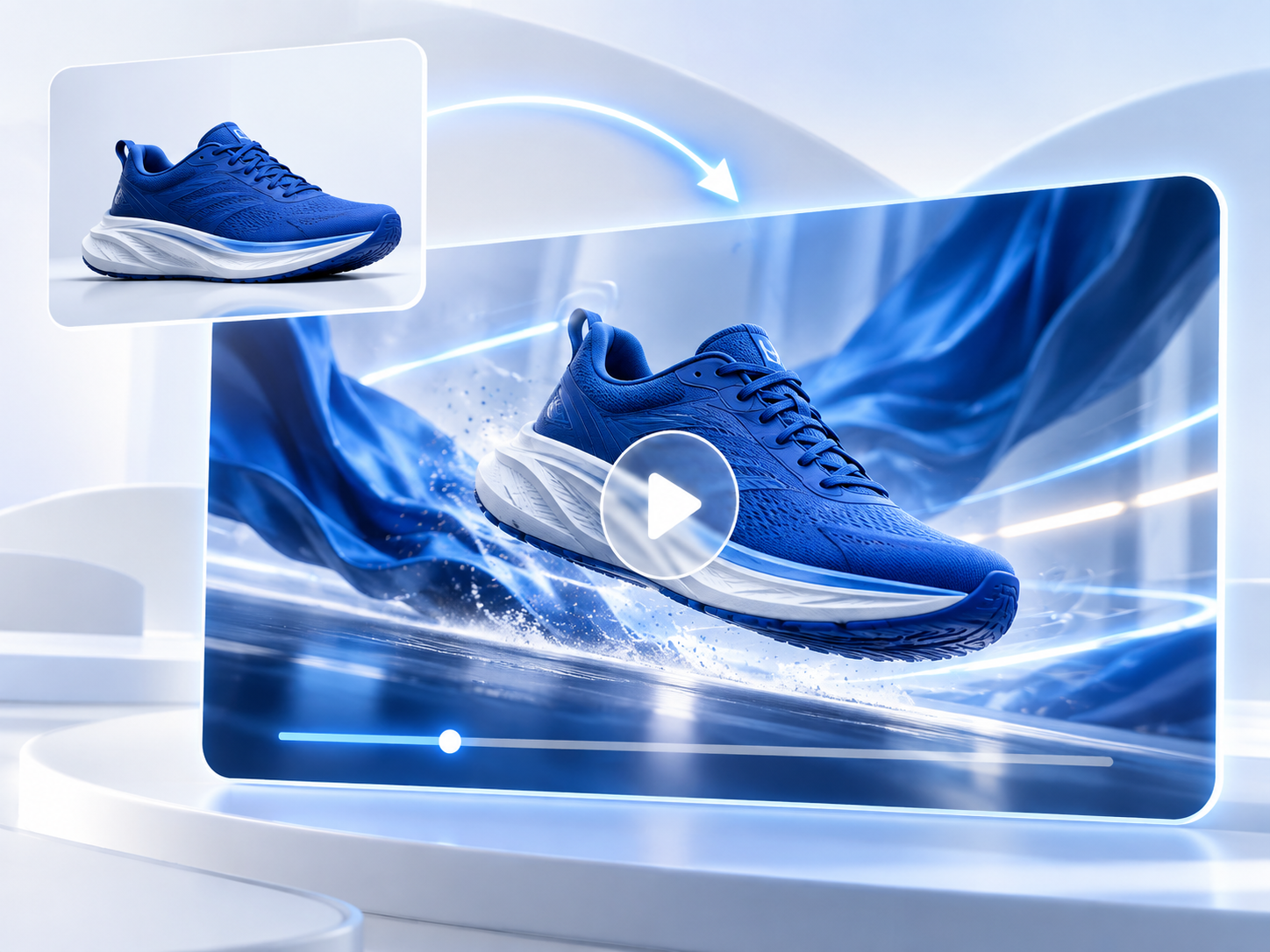
FAQ
uBrand AI image generator FAQs
What is an AI brand image generator?
uBrand lets you create brand images from a text prompt or edit a reference image with plain-language instructions. Use it for product visuals, campaign creative, and social images, then compare results from multiple AI image models in one workspace.
How do I create or edit an image with text?
Describe the image you want or upload a reference image and describe the change. Choose an image model that supports your task, then generate. Be specific: “Replace the background with a bright studio and keep the product blue” gives clearer direction than “make it better.” Review the result and refine it with another instruction if needed.
Is the AI brand image generator free to try?
Yes. You can try the AI image generator with the available free allowance after signing in. AI actions can use credits, and costs vary by model and task. Check the displayed cost before generating and visit our pricing page for paid plans. Free to try does not mean unlimited free editing.
Do I need to install software or know how to edit photos?
No installation or design experience is needed. The AI image editor runs in your browser on desktop or mobile. Start with one clear instruction, check the result, and make further changes as needed.
Can I crop images, remove backgrounds, or upscale a photo?
Yes. For crop controls, background removal, upscaling, and SVG conversion, open our online photo editor. It also keeps an editing history so you can revisit changes. Some AI tools use credits; review the cost shown for the action you choose.
Which AI image models can I compare?
The AI image editor includes ChatGPT image, Nano Banana, Grok Imagine, and other supported models such as Flux, Seedream, and Qwen Image. Choose models that support your editing task, send the same instructions and references, and compare the outputs. Availability and reference-image support vary by model.
Can I use multiple reference images?
Yes, supported models accept multiple reference images. Use them to show the subject, product, style, or setting you want. Explain the role of each reference in your instructions, such as keeping the product from the first image and using the colors from the second.
How can I get more accurate AI image edits?
Use a clear source image and state both what should change and what should stay the same. Start with one main change, then refine the result. AI can alter details you intended to preserve, so check faces, lettering, colors, and product features before using the image.
Can I download the images I edit?
Open a completed image in the full-size preview and choose Download to save it. The output dimensions and file format depend on the selected model and editing tool. Save results you want to keep rather than relying on the results gallery as permanent storage.
Can I turn an image into an AI video?
Yes. Open the image result and choose Create video to continue in the video workflow. Your image becomes a visual reference, and you can add instructions for motion or camera movement. Video generation has its own model options and credit costs.